
Lesson at a glance
maze.education/microbit/lessons/step-counter
- Grades
- Grades 4 to 7
- Time
- 45 to 60 minutesThe CAPS gives Coding and Robotics 2 hours a week (Coding and Robotics CAPS, Grades 4 to 6, page 22; Grades 7 to 9, page 22).
- Level
- Getting startedA good first or second micro:bit lesson. No coding needed before.
- Board
- Any micro:bit
- Code with
- MakeCode and Purple Mash blocks, with Python as an extension
- CAPS
- Coding and Robotics, Mathematics, Life Skills, Life OrientationAligned: Grade 6, Term 2 · Where it fits
Learning intentions
Learners will learn to:
- Create a variable, change it and show its value.
- Reset a variable to zero with a button.
- Test a device's accuracy by comparing it with a careful count.
Success criteria
Each learner can say:
- I can make a variable called steps, add 1 to it on every shake and show its value.
- I can set steps back to 0 with button B and explain why a counter needs a reset.
- I can test my counter against a careful count and work out the difference.
- Grade 7: I can trace the value of steps through a short walk, a check and a reset.
Competencies
From the Coding and Robotics CAPS places this lesson cites.
- C.2Present a simple coding solution
- C.4Debug a given symbolic or written set of instructions
Key words
- variable
- A named box in the computer's memory that holds a value that can change.
- increment
- To add one to a variable.
- reset
- To set a value back to where it started, usually zero.
- accuracy
- How close a measurement is to the true value.
- accelerometer
- The sensor that feels movement and shaking.
- IPO table
- A plan with three columns: the input, the processing and the output.
What you need
- One micro:bit per learner or pair, with a USB cable and a battery holder
- The strap from the classroom pack, a sock or sticky tape to fix the micro:bit and battery holder to a shoe or ankle
- A clear stretch of corridor or field, and a ruler for the stretch task
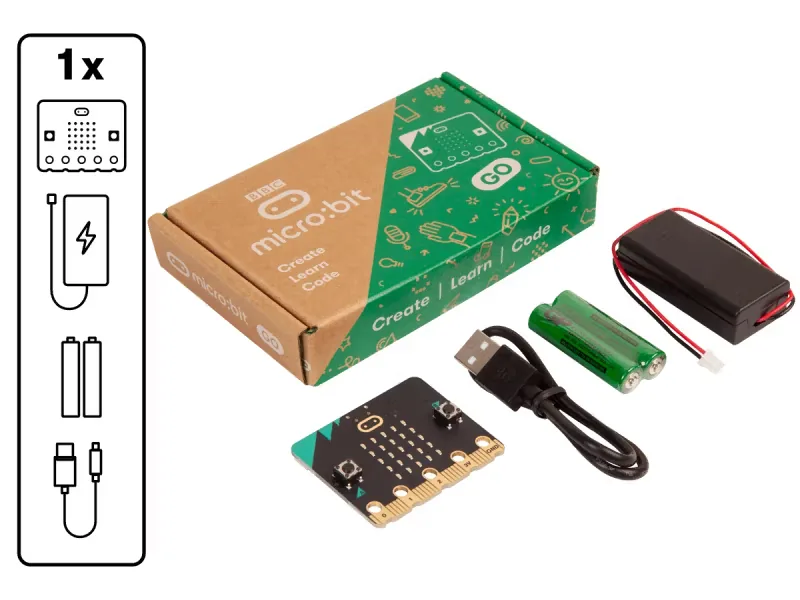
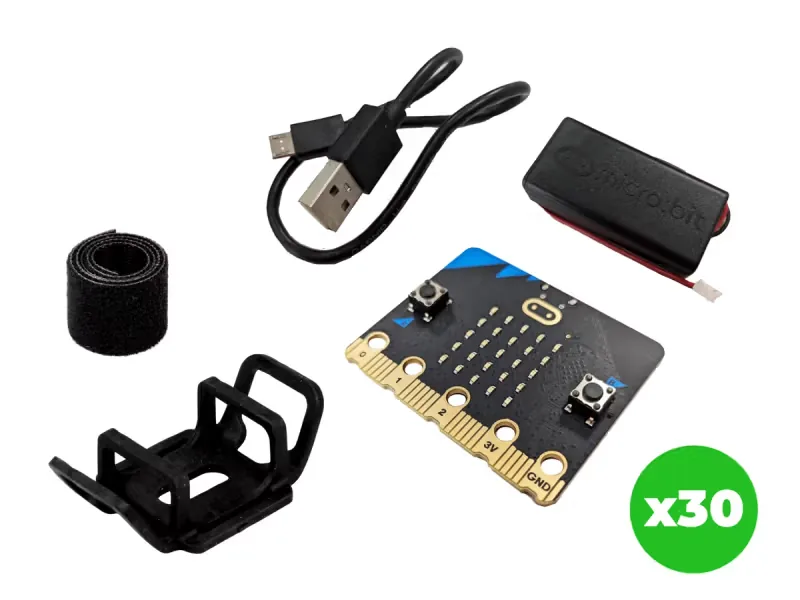
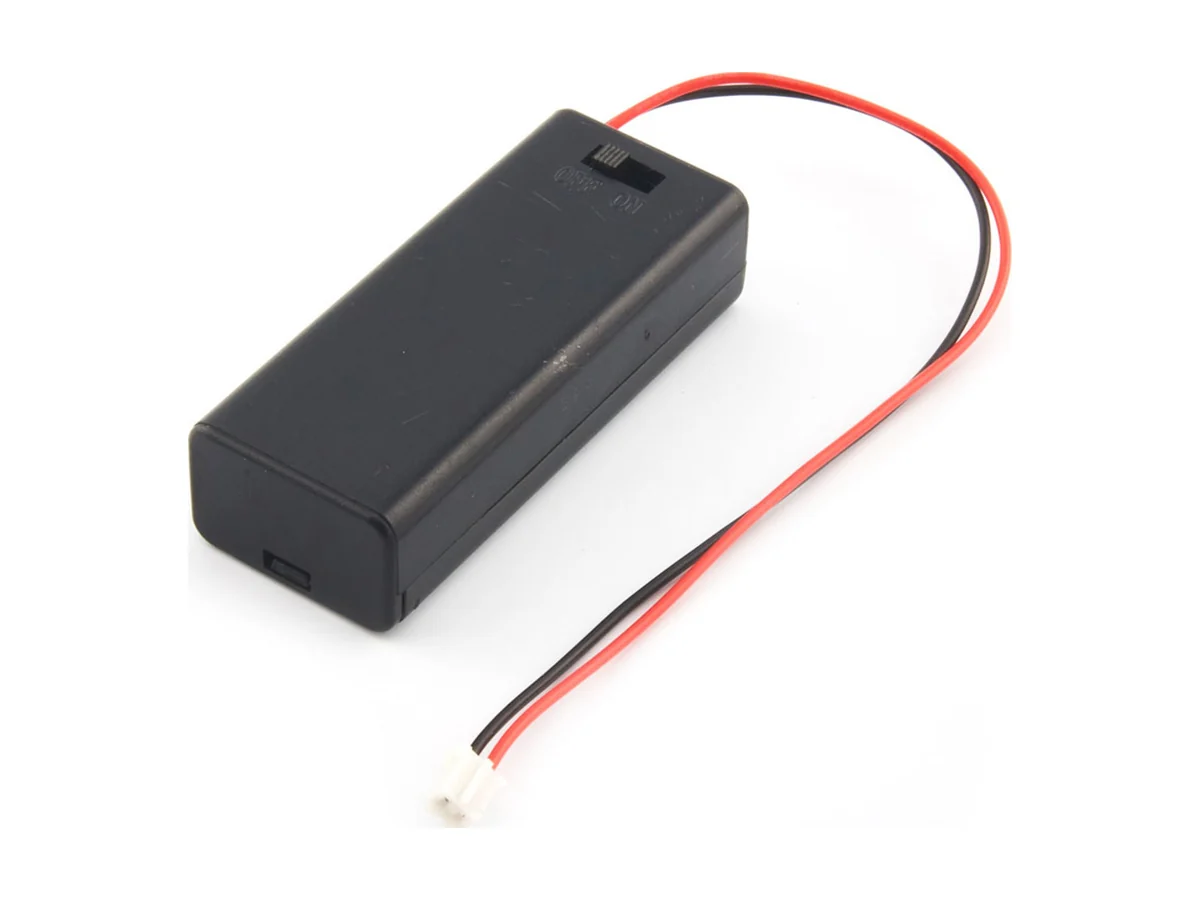
From our shop: BBC micro:bit V2 Go, BBC micro:bit V2.21 Next Gen Classroom Pack, micro:bit Battery Box (Switched)
Safety
- Clear a safe space first: no bags on the floor, and enough room for everyone to move without bumping into each other.
- Walk, do not run, while testing. Fix the battery holder so it cannot swing and hit anyone.
- Use the battery holder with two AAA batteries. Never mix old and new batteries, and take the batteries out before the kits are packed away.
The lesson plan
One lesson of 45 to 60 minutes in three parts: introduction, lesson development and consolidation. The CAPS gives Coding and Robotics 2 hours a week, so it fits one of the week's lessons. Times are a guide.
Introduction
5 to 10 minutesRetrieval practiceWhat is the difference between an input and an output? (An input goes into the computer, such as a button press; an output comes out, such as the display lighting up.)
Problem statementMany learners in South Africa walk to school every day, often a long way, but few know how far that is in steps. Build a step counter on the micro:bit, and test how accurate it is against a careful count.
- Ask: who has seen a step counter on a phone or watch? How does it know you took a step? Explain the accelerometer: it feels each jolt when your foot lands.
- Read the problem statement together. Ask: how could we check whether a step counter is telling the truth?
Lesson development
35 to 40 minutes- Unplugged first. Learners walk ten steps while a partner counts aloud on their fingers. The partner is the variable: they add one each time and say the total when asked. Then reset to zero and try again.
- Plan on paper first. Pairs fill in an IPO table with a row for each event: a shake, button A and button B. Grade 7 learners add a trace table for steps.
- Predict. Ask: if you shake the board five times, press A, then press B and press A again, what will you see each time? Pairs write it down.
- Build in blocks. Pairs share one computer. The driver makes the variable steps and builds on shake from the Blocks tab; the navigator checks each block against the IPO table. Swap roles halfway, after on shake, so the new driver builds buttons A and B.
- Test and debug. In the simulator, click SHAKE five times, then press A, B and A again. Did it match your prediction? If A always shows 0, check that the change block is inside on shake. Then download it and fix the micro:bit and battery holder firmly to a shoe or ankle.
- Walk 20 careful steps while a partner counts. Press A. Does the micro:bit agree? Press B to reset and try again. Record the results in a table: real steps, micro:bit steps, difference.
Plan on paper: a model answer
In pairs, fill in an IPO table with a row for each event. Grade 7 learners also trace the value of steps.
IPO table
Input Processing Output The board is shaken (a foot lands) Change steps by 1 Nothing yet: the count is kept in memory Button A is pressed Read the value of steps The number of steps on the display Button B is pressed Set steps back to 0 A tick Trace table
Grade 7: the value of steps as a learner takes three steps, checks the count, resets it and checks again. Event steps The display shows Switched on 0 Nothing Shake (step 1) 1 Nothing Shake (step 2) 2 Nothing Shake (step 3) 3 Nothing A pressed 3 3 B pressed 0 A tick A pressed again 0 0 Consolidation
5 to 10 minutes- Compare the tables. Was the counter too high or too low? Why might that be? Where would you wear it to get the best count?
- Ask: what does the variable steps hold before we press B, and after?
- Back to the problem: would you trust the counter on the walk to school? How could you use it to work out how far you walk? Learners check themselves against the success criteria.
Build it, step by step
Pairs build the program in blocks, following the numbered steps, with the same program as text beside them to check against or paste. Test in the simulator before sending it to a board.
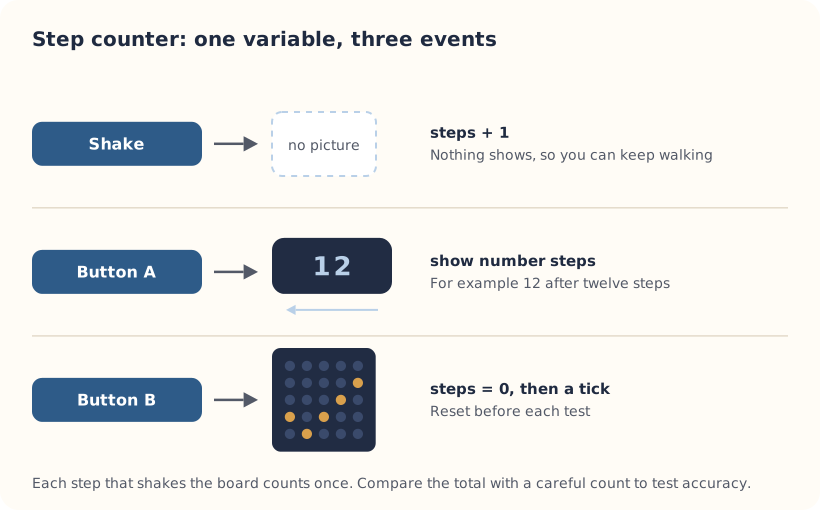
These are the MakeCode steps. The other routes are on the lesson's web page.
Build it in MakeCode blocks
- Start a New Project and, in Variables, make a variable called steps.
- From Input, drag in on shake. From Variables, put change steps by 1 inside it.
- From Input, drag in on button A pressed and put show number from Basic inside it, with the steps variable.
- Add on button B pressed with set steps to 0 and show icon with the tick.
- Test in the simulator: SHAKE several times, then press A.
- Download, then strap it on and walk.
let steps = 0
input.onGesture(Gesture.Shake, function () {
    steps += 1
})
input.onButtonPressed(Button.A, function () {
    basic.showNumber(steps)
})
input.onButtonPressed(Button.B, function () {
    steps = 0
    basic.showIcon(IconNames.Yes)
})
To use the text instead: open MakeCode, start a new project, click JavaScript at the top, replace what is there with this code, then click Blocks to see it as blocks.
To send it to the board, click Download. In Chrome or Edge, MakeCode can connect to the micro:bit by USB so the program goes straight onto it. Otherwise a .hex file downloads: drag it onto the MICROBIT drive.
Purple Mash follows the UK school years, which run about one grade ahead of ours: Year 3 is roughly Grade 2 here, Year 4 roughly Grade 3 and Year 5 roughly Grade 4. 2Simple says its micro:bit lessons can be adapted for other ages, so older learners who are new to the micro:bit can use them too.
These steps are our own. 2Simple's lesson has its own plan, slides and videos, which teachers with a Purple Mash login can use alongside this one.
Our steps in Free Code micro:bit
Block names in Free Code micro:bit are not the same as MakeCode's, so these steps say what each block does. Check the exact names in Purple Mash.
- Log in to Purple Mash and open the lesson from the Computing Scheme of Work, or the micro:bit projects in the Computing area. They use Free Code micro:bit, 2Simple's block coding tool for the micro:bit (2Simple's help pages also call it 2Code micro:bit).
- Open Free Code micro:bit from the Step Counter lesson or project.
- Make a variable for the steps and set it to 0 at the start.
- When the board is shaken, add 1 to the variable.
- Show the variable on button A, and set it back to 0 on button B.
- Test the program on the on-screen micro:bit (2Simple calls it the micro:bit emulator) before you send it to a board.
- Save your work, open the purple menu at the top and choose Download.Hex. Plug in the micro:bit with a USB cable that carries data and drag the .hex file onto the MICROBIT drive. On an iPad, open the file in the micro:bit app and tap Send to micro:bit.
2Simple says the micro:bit projects can also be coded in Python in Pieces, if your school has it.
Extension: text-based coding, beyond the CAPS
The same program in MicroPython, for the micro:bit Python Editor. It suits Grade 7 to 9 learners who are ready for text-based code. The CAPS itself follows a block-based approach (Coding and Robotics CAPS, Grades 7 to 9, page 24).
# Step counter: every shake adds one. A shows the total, B resets it.
from microbit import *

steps = 0
while True:
    if accelerometer.was_gesture("shake"):
        steps += 1
    if button_a.was_pressed():
        display.scroll(steps)
    if button_b.was_pressed():
        steps = 0
        display.show(Image.YES)
    sleep(50)
While the total scrolls, the Python version is busy and does not count steps, so press A after walking rather than during.
Open the Python editor, replace the code that is there with this program (or open the downloaded file), then click Send to micro:bit. MakeCode also has a Python view, which is written a little differently.
Extension or homework
Challenges for learners who finish early, or to take further in a club or as homework.
- Challenge 1
Count steps on the way to break and back, then work out the class's mean number of steps.
- Challenge 2
Show the steps as a bar that fills up as you get closer to your goal, with plot bar graph of.
- Challenge 3
Make it a pet that needs walks in the Look after a micro:bit pet lesson.
Support and extension
Support
For learners who need more help
- Start with on shake showing the number straight away, so learners see it go up, then add the buttons.
- Count in the simulator only before strapping it on.
Extension
For learners who are ready for more
- Measure your step length in centimetres and work out the distance walked: steps times step length.
- Add a goal: when steps reaches 50, show a trophy picture you draw with show leds.
Informal assessment
Ask these as learners work. Informal assessment happens every day and is not recorded.
- What is a variable, and what is ours called?
- What does change steps by 1 do?
- Why does button B set steps to 0?
Your counter said 23 after 20 real steps. What is the difference, and what could cause it?
Observation checklist
Watch pairs as they plan, build and test. Write each pair's initials under the level you see.
| Watch for | Beginning | Developing | Accomplished | Exemplary |
|---|---|---|---|---|
| Fills in the IPO table with a row for each event. | ||||
| Predicts the display after shakes and presses, then checks in the simulator. | ||||
| Builds change steps by 1 inside on shake, and the reset on button B. | ||||
| Records real and counted steps, and works out the difference. | ||||
| Explains why the counter can be too high or too low. |
- Beginning:
- not yet, even with help
- Developing:
- with help
- Accomplished:
- on their own
- Exemplary:
- on their own, and explains it or takes it further
The four levels are the CAPS rubric levels (Coding and Robotics CAPS, Grades 4 to 6, page 176; Grades 7 to 9, page 163). The short descriptions are ours.
This lesson is not a formal task, but it is good practice for the term's practical task in Grades 4 to 6 (Coding and Robotics CAPS, Grades 4 to 6, page 170), and for the mini-PATs in Grades 7 to 9 (Coding and Robotics CAPS, Grades 7 to 9, page 157).
Common mistakes and fixes
- It counts when I am standing still.Small bumps can count as a shake. Fix the micro:bit firmly so it does not rattle.
- Button A always shows 0.Check the change block is inside on shake and says steps, and that A shows the steps variable.
- It misses steps.Walk with firm steps, and wear it on the ankle or shoe rather than in a pocket.
Where it sits in CAPS
- Coding and RoboticsAlignedGrade 6, Term 2: create a variable and change its value with code.Source: Coding and Robotics CAPS, Grades 4 to 6, Grade 6, Term 2, Coding, C.2 Present a simple coding solution, page 137:
We can change the value of a variable through code
- Coding and RoboticsAlignedGrade 6, Term 2: set the score back to 0, and say why.Source: Coding and Robotics CAPS, Grades 4 to 6, Grade 6, Term 2, Coding, C.2 Present a simple coding solution, page 139:
Why is it necessary to set the score to 0 when the program starts (green flag is clicked)?
- Coding and RoboticsAlignedGrade 6, Term 2: test a program and check whether its output is correct.Source: Coding and Robotics CAPS, Grades 4 to 6, Grade 6, Term 2, Coding, C.4 Debug a given symbolic or written set of instructions, page 140:
Learners test code and evaluate the output for correctness.
- MathematicsFits Mathematics measurement: estimating a distance from a step count and a measured step length.
- Life SkillsFits Life Skills physical education (Life Orientation in Grade 7): keeping track of how active you are.
Coding and Robotics quotes come from the Department of Basic Education's final CAPS, with the page number of the 2024 printed edition (the Department's October 2025 library copies number their pages differently). Schools may teach a topic in another term: the CAPS leaves the order to each school's annual teaching plan.
micro:bit is a trade mark of the Micro:bit Educational Foundation, and BBC is a trade mark of the British Broadcasting Corporation. Maze Education is an independent reseller of genuine BBC micro:bit products. Our teacher training and our other products and services are our own, and are not endorsed by the Foundation or the BBC.