
Lesson at a glance
maze.education/microbit/lessons/thermometer
- Grades
- Grades 5 to 7
- Time
- 45 to 60 minutesThe CAPS gives Coding and Robotics 2 hours a week (Coding and Robotics CAPS, Grades 4 to 6, page 22; Grades 7 to 9, page 22).
- Level
- Getting startedA good first or second micro:bit lesson. No coding needed before.
- Board
- Any micro:bit
- Code with
- MakeCode and Purple Mash blocks, with Python as an extension
- CAPS
- Mathematics, Natural Sciences and Technology, Natural Sciences, Coding and RoboticsAligned: Grade 6, Term 3 · Where it fits
Learning intentions
Learners will learn to:
- Read the micro:bit's temperature sensor and show the result in degrees Celsius.
- Measure, record, compare and order temperatures in different places.
- Calculate the difference between the micro:bit's reading and the weather report's.
Success criteria
Each learner can say:
- I can program the micro:bit to show the temperature in degrees Celsius.
- I can record temperatures in a table and order them from coldest to warmest.
- I can work out the difference between two temperatures.
Competencies
From the Coding and Robotics CAPS places this lesson cites.
- R.5Design a simple artefact based on a set of design instructions
Key words
- temperature
- How hot or cold something is.
- degrees Celsius (°C)
- The unit we use for temperature. Water freezes at 0 °C and boils at 100 °C.
- sensor
- A part that measures something. The micro:bit's temperature sensor is inside its processor chip.
- difference
- How much bigger one number is than another: subtract the smaller from the bigger.
What you need
- One micro:bit per pair, with a USB cable and a battery holder
- A computer with Chrome or Edge for each pair
- The current temperature for your town on a weather website, opened on the class computer, and a recording table
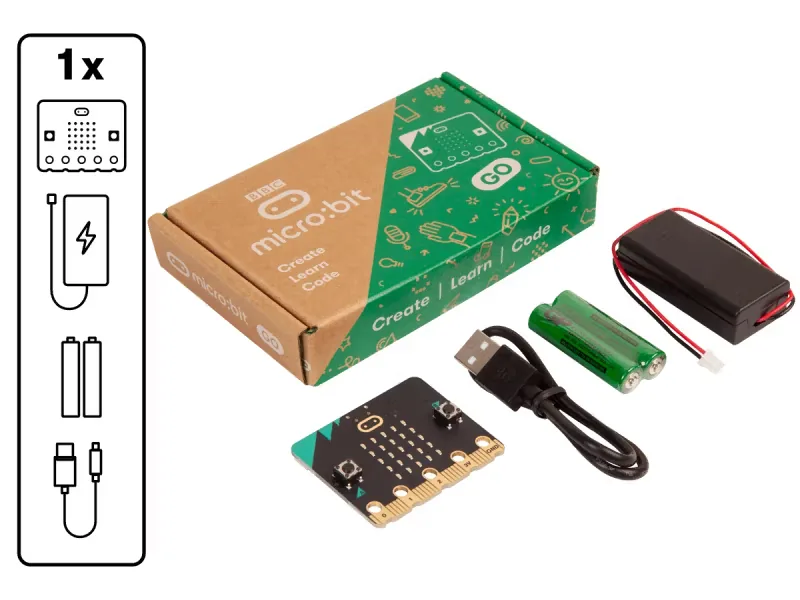
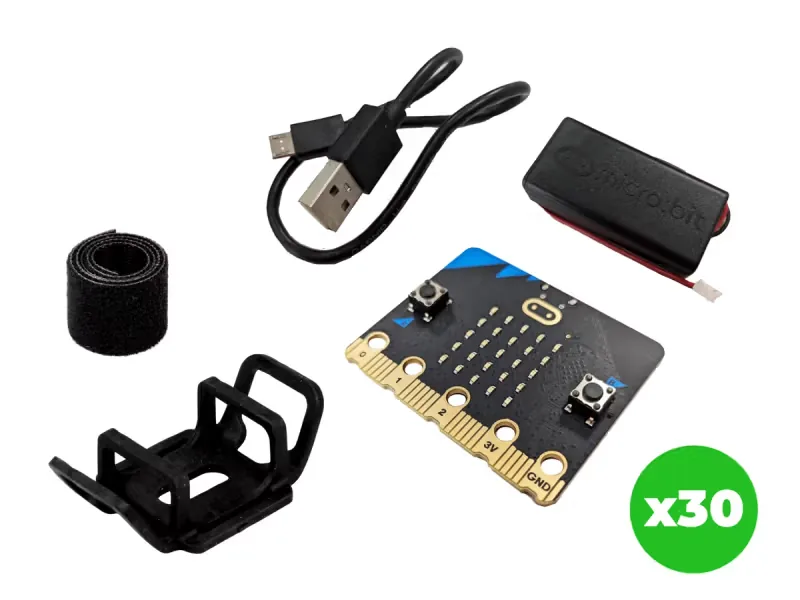
From our shop: BBC micro:bit V2 Go, BBC micro:bit V2.21 Next Gen Classroom Pack
Safety
- Never put the micro:bit near a heater, a stove or in a fridge: measure air temperatures only.
- Keep the micro:bit dry, and hold it by its edges rather than the parts on the back.
- Use the battery holder with two AAA batteries. Never mix old and new batteries, and take the batteries out before the kits are packed away.
The lesson plan
One lesson of 45 to 60 minutes in three parts: introduction, lesson development and consolidation. The CAPS gives Coding and Robotics 2 hours a week, so it fits one of the week's lessons. Times are a guide.
Introduction
5 to 10 minutesRetrieval practiceWhat is an input? (Information going into a computer, such as a button press or a reading from a sensor.)
Problem statementOn hot afternoons some classrooms become hard to work in, and the school wants to know which rooms and corners get warmest. Turn the micro:bit into a thermometer, check it against the weather report, and measure the warmest and coolest places.
- Ask: what is the temperature outside right now? Collect guesses, then look up the current temperature for your town on a weather website.
- Read the problem statement. Ask: where in the school is the warmest place? The coldest? Write predictions on the board.
Lesson development
35 to 40 minutes- Unplugged first. Pairs order five picture cards from coldest to hottest: an ice cube, the Highveld on a winter morning, the classroom, a cup of tea, boiling water. Add a sensible temperature to each.
- Plan on paper first. Pairs fill in an IPO table for the thermometer and write its algorithm in numbered steps. Grade 7 learners add a trace table for three passes of the loop.
- Predict. Ask: will the micro:bit read the same as the weather website, or higher, or lower? Pairs write their prediction beside the plan.
- Build in blocks. Pairs share one computer. The driver builds the thermometer from the Blocks tab; the navigator checks each block against the algorithm. Swap roles halfway, once the temperature block is in place.
- Test and debug. Move the simulator's temperature control and check that the number changes. Then download it, leave the micro:bit on batteries outside in the shade for two minutes, and record its reading and the weather website's temperature for your town. Work out the difference: the micro:bit measures the temperature of its own chip, which is often a little warmer than the air.
- Measure three places with the micro:bit: a sunny windowsill, a shady corner, inside a bag. Record the results, order them, and discuss which place was warmest and why.
Plan on paper: a model answer
In pairs, fill in an IPO table for the thermometer and write its algorithm. Grade 7 learners also trace three passes of the loop.
Algorithm
- Read the temperature.
- Show the number.
- Show the letter C.
- Wait one second.
- Go back to step 1.
IPO table
Input Processing Output The temperature sensor inside the processor chip Read the temperature in degrees Celsius, once a second, forever The number, then the letter C, on the display Trace table
Grade 7: three passes of the forever loop, for example as the board is carried to a sunny windowsill. Pass Temperature read (°C) The display shows 1 23 23, then C 2 23 23, then C 3 26 26, then C Consolidation
5 to 10 minutes- Ask: by how many degrees did your micro:bit differ from the weather report?
- Ask: if the micro:bit always reads 2 degrees high, how could we change the program to correct it?
- Back to the problem: order the class's warmest and coldest readings on the board. Which room or corner would you tell the principal about, and what evidence would you show?
Build it, step by step
Pairs build the program in blocks, following the numbered steps, with the same program as text beside them to check against or paste. Test in the simulator before sending it to a board.
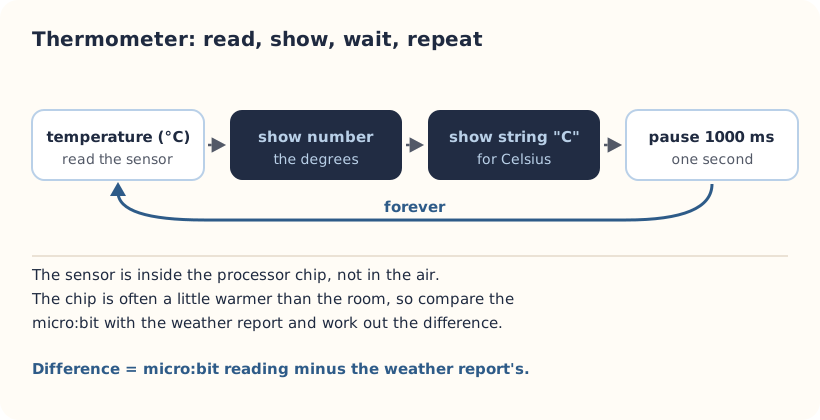
These are the MakeCode steps. The other routes are on the lesson's web page.
Build it in MakeCode blocks
- Start a New Project called Thermometer.
- From Basic, drag show number into forever.
- From Input, drag temperature (°C) into the number.
- From Basic, add show string and type C, so it reads like 24 then C.
- From Basic, add pause (ms) of 1000 so it shows the temperature once a second.
- Test in the simulator with its temperature control, then Download.
basic.forever(function () {
    basic.showNumber(input.temperature())
    basic.showString("C")
    basic.pause(1000)
})
To use the text instead: open MakeCode, start a new project, click JavaScript at the top, replace what is there with this code, then click Blocks to see it as blocks.
To send it to the board, click Download. In Chrome or Edge, MakeCode can connect to the micro:bit by USB so the program goes straight onto it. Otherwise a .hex file downloads: drag it onto the MICROBIT drive.
Purple Mash follows the UK school years, which run about one grade ahead of ours: Year 3 is roughly Grade 2 here, Year 4 roughly Grade 3 and Year 5 roughly Grade 4. 2Simple says its micro:bit lessons can be adapted for other ages, so older learners who are new to the micro:bit can use them too.
These steps are our own. 2Simple's lesson has its own plan, slides and videos, which teachers with a Purple Mash login can use alongside this one.
Our steps in Free Code micro:bit
Block names in Free Code micro:bit are not the same as MakeCode's, so these steps say what each block does. Check the exact names in Purple Mash.
- Log in to Purple Mash and open the lesson from the Computing Scheme of Work, or the micro:bit projects in the Computing area. They use Free Code micro:bit, 2Simple's block coding tool for the micro:bit (2Simple's help pages also call it 2Code micro:bit).
- Open Free Code micro:bit from the Thermometer project in Purple Mash's micro:bit projects.
- In a loop that repeats forever, show the temperature reading on the display.
- Add a short wait inside the loop, so the number is easy to read.
- Check in Purple Mash which block gives the temperature.
- Test the program on the on-screen micro:bit (2Simple calls it the micro:bit emulator) before you send it to a board.
- Save your work, open the purple menu at the top and choose Download.Hex. Plug in the micro:bit with a USB cable that carries data and drag the .hex file onto the MICROBIT drive. On an iPad, open the file in the micro:bit app and tap Send to micro:bit.
2Simple says the micro:bit projects can also be coded in Python in Pieces, if your school has it.
Extension: text-based coding, beyond the CAPS
The same program in MicroPython, for the micro:bit Python Editor. It suits Grade 7 to 9 learners who are ready for text-based code. The CAPS itself follows a block-based approach (Coding and Robotics CAPS, Grades 7 to 9, page 24).
# Thermometer: shows the temperature in degrees Celsius, once a second.
from microbit import *

while True:
    display.scroll(str(temperature()) + "C")
    sleep(1000)
Open the Python editor, replace the code that is there with this program (or open the downloaded file), then click Send to micro:bit. MakeCode also has a Python view, which is written a little differently.
Extension or homework
Challenges for learners who finish early, or to take further in a club or as homework.
- Challenge 1
Record the temperature at the same time each day for a week, and draw a line graph.
- Challenge 2
Find the warmest and coolest places in the classroom with the board, then see whether the warm spots are near windows.
- Challenge 3
Log the temperature automatically with the Data logger lesson (micro:bit V2).
- Challenge 4
Make an LED temperature alert, as in the Grade 6 CAPS: show a warning picture when the room is warmer than 30 °C.
Support and extension
Support
For learners who need more help
- Give a recording table with the places already written in.
- Let learners read the micro:bit with a partner and agree on the reading.
Extension
For learners who are ready for more
- Correct the reading in code: subtract your measured difference with a minus block from Math.
- Use if and show icon to show a happy face between 18 and 26 degrees and a sad face outside it.
Informal assessment
Ask these as learners work. Informal assessment happens every day and is not recorded.
- What unit does the micro:bit use for temperature?
- Why might the micro:bit read warmer than the air around it?
- The micro:bit says 27 and the weather report says 24. What is the difference?
Which reading would you trust more, and why?
Observation checklist
Watch pairs as they plan, build and test. Write each pair's initials under the level you see.
| Watch for | Beginning | Developing | Accomplished | Exemplary |
|---|---|---|---|---|
| Fills in the IPO table: the sensor in, the reading processed, the number out. | ||||
| Builds the loop with the reading, the C and a pause. | ||||
| Records readings carefully in a table, with the unit. | ||||
| Works out a difference and explains why the chip may read warm. |
- Beginning:
- not yet, even with help
- Developing:
- with help
- Accomplished:
- on their own
- Exemplary:
- on their own, and explains it or takes it further
The four levels are the CAPS rubric levels (Coding and Robotics CAPS, Grades 4 to 6, page 176; Grades 7 to 9, page 163). The short descriptions are ours.
This lesson is not a formal task, but it is good practice for the term's practical task in Grades 4 to 6 (Coding and Robotics CAPS, Grades 4 to 6, page 170), and for the mini-PATs in Grades 7 to 9 (Coding and Robotics CAPS, Grades 7 to 9, page 157).
Common mistakes and fixes
- The reading keeps going up while it is plugged in.The computer and the busy chip warm it. Run it on batteries and wait two minutes before reading.
- It shows the number but not the C.Check the show string block is inside forever, under show number.
- The numbers scroll too fast to read.Make the pause longer, for example 2000.
Where it sits in CAPS
- Coding and RoboticsAlignedGrade 6, Term 3: read the built-in temperature sensor and show the temperature (the CAPS temperature display).Source: Coding and Robotics CAPS, Grades 4 to 6, Grade 6, Term 3, Robotics, R.5 Design a simple artefact based on a set of design instructions, page 153:
Use the built-in temperature sensor and display the current temperature on a LED matrix.
- MathematicsGrades 5 and 6 Mathematics: measuring, recording and comparing temperatures, and working out differences.Source: CAPS Mathematics, Grades 4 to 6, Section 2, topic 4.5 Temperature (Grades 5 and 6):
calculating temperature differences limited to positive whole numbers
- Natural Sciences and TechnologyFits Natural Sciences and Technology (Natural Sciences in Grade 7): measuring temperature carefully and recording it in a table.
Coding and Robotics quotes come from the Department of Basic Education's final CAPS, with the page number of the 2024 printed edition (the Department's October 2025 library copies number their pages differently). Schools may teach a topic in another term: the CAPS leaves the order to each school's annual teaching plan.
micro:bit is a trade mark of the Micro:bit Educational Foundation, and BBC is a trade mark of the British Broadcasting Corporation. Maze Education is an independent reseller of genuine BBC micro:bit products. Our teacher training and our other products and services are our own, and are not endorsed by the Foundation or the BBC.