
Lesson at a glance
maze.education/microbit/lessons/beating-heart
- Grades
- Grades 3 to 5
- Time
- 45 to 60 minutesThe CAPS gives Coding and Robotics 2 hours a week (Coding and Robotics CAPS, Grades R to 3, page 20; Grades 4 to 6, page 22).
- Level
- Getting startedA good first or second micro:bit lesson. No coding needed before.
- Board
- Any micro:bit
- Code with
- MakeCode and Purple Mash blocks, with Python as an extension
- CAPS
- Coding and RoboticsFits: Grade 5, Term 4 · Where it fits
Learning intentions
Learners will learn to:
- Use a forever loop to repeat instructions.
- Explain the difference between repeating a few times and repeating forever.
- Change pauses to make an animation faster or slower.
Success criteria
Each learner can say:
- I can put blocks inside forever so that they repeat.
- I can explain when to use repeat 4 times and when to use forever.
- I can change the pauses to make the heart beat faster or slower.
Competencies
From the Coding and Robotics CAPS places this lesson cites.
- C.2Present a simple coding solution
- C.3Interpret and execute a given symbolic or written set of commands
- C.5Evaluate a given solution towards potential improvement
Key words
- loop
- Instructions that repeat.
- forever
- A loop that never stops while the micro:bit has power.
- pause
- Waiting for a set time, measured in milliseconds.
- millisecond
- One thousandth of a second. 1000 milliseconds make 1 second.
- animation
- Pictures shown one after another, so they seem to move.
What you need
- One micro:bit per learner or pair, with a USB cable and a battery holder
- A computer with Chrome or Edge for each learner or pair
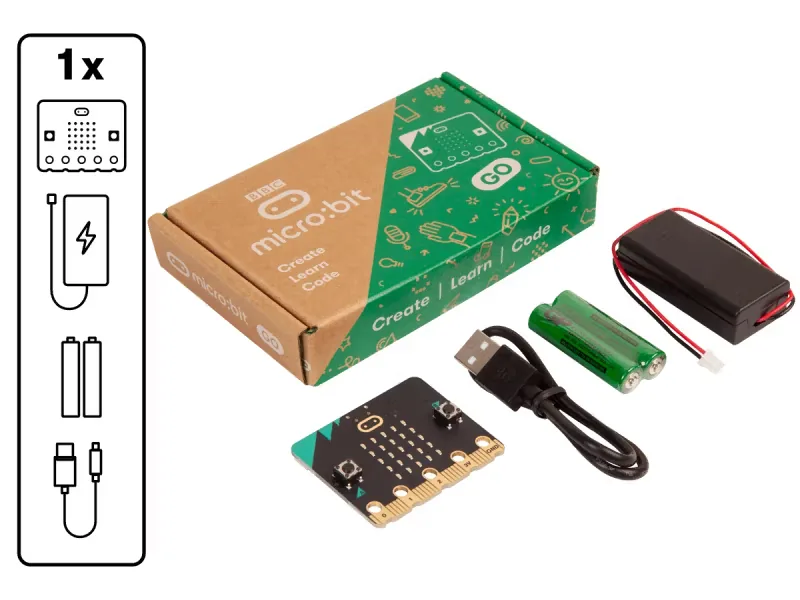
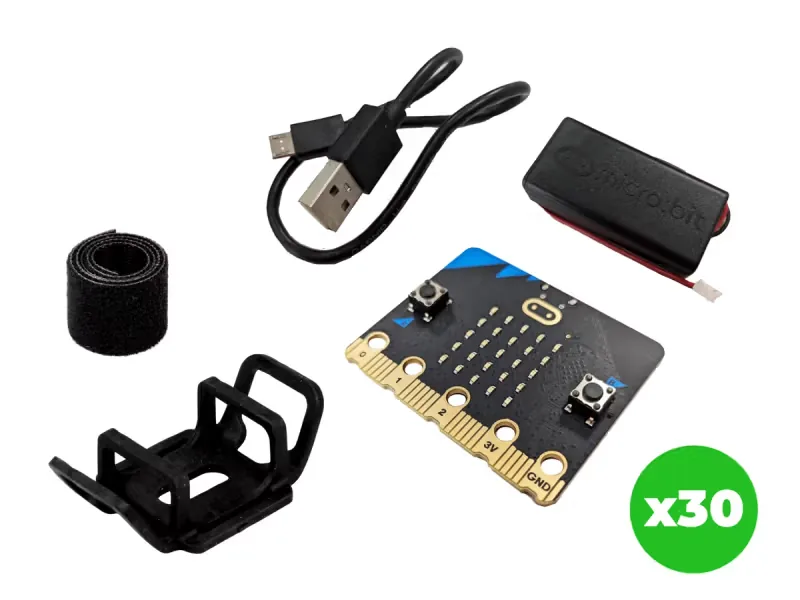
From our shop: BBC micro:bit V2 Go, BBC micro:bit V2.21 Next Gen Classroom Pack
Safety
- Keep USB cables tidy on the desk so nobody trips over them or pulls a laptop off the table.
- Use the battery holder with two AAA batteries. Never mix old and new batteries, and take the batteries out before the kits are packed away.
- Unplug the battery holder by holding its plug, never by pulling the wires.
The lesson plan
One lesson of 45 to 60 minutes in three parts: introduction, lesson development and consolidation. The CAPS gives Coding and Robotics 2 hours a week, so it fits one of the week's lessons. Times are a guide.
Introduction
5 to 10 minutesRetrieval practiceWhat is a sequence? (Steps that happen in a set order, one after another.)
Problem statementFor Heart Awareness Month in September, the school wants a display at the gate that catches the eye. Program a heart that beats by itself, at a speed you choose.
- Learners find their pulse on the wrist or neck and count the beats for 15 seconds. A heart repeats the same action over and over without being told.
- Read the problem statement. Ask: what else repeats? Day and night, a clock's tick, the chorus of a song.
Lesson development
35 to 40 minutes- Unplugged first. Clap a pattern: clap, pause, clap, pause. Then say the instructions out loud as a loop: repeat forever, clap, wait. A learner plays the computer and runs the loop until you say stop.
- Plan on paper first. Pairs write the heartbeat as an algorithm in numbered steps, then circle the steps that repeat and draw an arrow from the last step back to the first.
- Predict. Ask: with pauses of 200 milliseconds, will the heart beat faster or slower than yours? What will happen with pauses of 1000?
- Build in blocks. Pairs share one computer. The driver builds the beating heart in forever from the Blocks tab; the navigator checks each block against the numbered plan. Swap roles halfway, after the first heart and its pause.
- Test and debug. Watch the simulator. Change both pauses to 100, then to 1000, and compare with the predictions. In MakeCode show icon also waits about 600 milliseconds by itself, which is why even a short pause gives a steady beat.
- Experiment: drag the four blocks out of forever into a repeat 4 times loop from Loops, inside on start. The heart beats four times and stops. Which loop does a real heart need? Put the blocks back into forever and download the program to the micro:bit.
Plan on paper: a model answer
In pairs, write the heartbeat as numbered steps, then mark the steps that repeat.
Algorithm
- Show the big heart.
- Wait 200 milliseconds.
- Show the small heart.
- Wait 200 milliseconds.
- Go back to step 1, forever.
Consolidation
5 to 10 minutes- Ask: what is the difference between repeat 4 times and forever?
- Learners show their fastest and slowest hearts. Which pause numbers did they use?
- Back to the problem: which speed would you choose for the display at the gate, and why? Where else would a loop that never stops be useful? A robot at a crossing, a clock, a lighthouse.
Build it, step by step
Pairs build the program in blocks, following the numbered steps, with the same program as text beside them to check against or paste. Test in the simulator before sending it to a board.
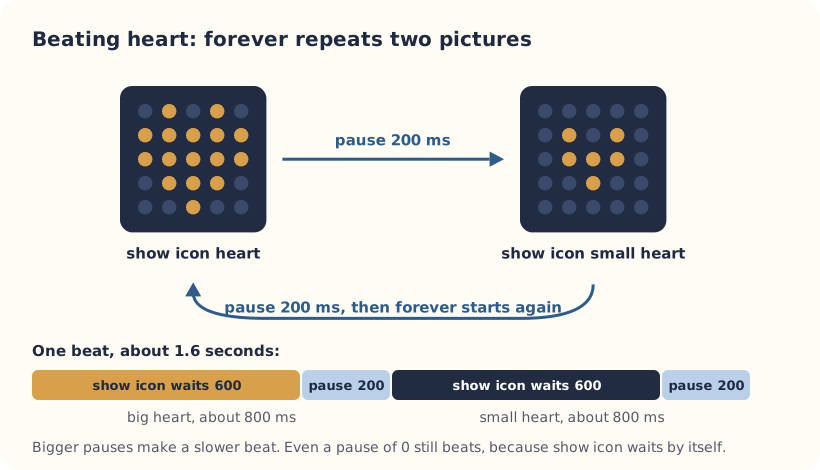
These are the MakeCode steps. The other routes are on the lesson's web page.
Build it in MakeCode blocks
- Start a New Project called Beating heart.
- From Basic, drag show icon into forever and choose the big heart.
- From Basic, drag pause (ms) under it and set it to 200.
- Add another show icon with the small heart, then another pause (ms) of 200.
- Watch the simulator: the heart starts beating by itself.
- Click Download and send it to the micro:bit.
basic.forever(function () {
    basic.showIcon(IconNames.Heart)
    basic.pause(200)
    basic.showIcon(IconNames.SmallHeart)
    basic.pause(200)
})
To use the text instead: open MakeCode, start a new project, click JavaScript at the top, replace what is there with this code, then click Blocks to see it as blocks.
To send it to the board, click Download. In Chrome or Edge, MakeCode can connect to the micro:bit by USB so the program goes straight onto it. Otherwise a .hex file downloads: drag it onto the MICROBIT drive.
Purple Mash follows the UK school years, which run about one grade ahead of ours: Year 3 is roughly Grade 2 here, Year 4 roughly Grade 3 and Year 5 roughly Grade 4. 2Simple says its micro:bit lessons can be adapted for other ages, so older learners who are new to the micro:bit can use them too.
These steps are our own. 2Simple's lesson has its own plan, slides and videos, which teachers with a Purple Mash login can use alongside this one.
Our steps in Free Code micro:bit
Block names in Free Code micro:bit are not the same as MakeCode's, so these steps say what each block does. Check the exact names in Purple Mash.
- Log in to Purple Mash and open the lesson from the Computing Scheme of Work, or the micro:bit projects in the Computing area. They use Free Code micro:bit, 2Simple's block coding tool for the micro:bit (2Simple's help pages also call it 2Code micro:bit).
- Open Free Code micro:bit from the Beating Heart lesson.
- Find the loop block that repeats forever and put two pictures inside it: a big heart, then a small heart.
- Add a short wait after each picture, if your version has a wait or pause block.
- Change the waits and watch the speed of the beat change.
- Test the program on the on-screen micro:bit (2Simple calls it the micro:bit emulator) before you send it to a board.
- Save your work, open the purple menu at the top and choose Download.Hex. Plug in the micro:bit with a USB cable that carries data and drag the .hex file onto the MICROBIT drive. On an iPad, open the file in the micro:bit app and tap Send to micro:bit.
2Simple says the micro:bit projects can also be coded in Python in Pieces, if your school has it.
Extension: text-based coding, beyond the CAPS
The same program in MicroPython, for the micro:bit Python Editor. It suits Grade 7 to 9 learners who are ready for text-based code. The CAPS itself follows a block-based approach (Coding and Robotics CAPS, Grades 7 to 9, page 24).
# Beating heart: a big heart and a small heart, forever.
from microbit import *

while True:
    display.show(Image.HEART)
    sleep(800)
    display.show(Image.HEART_SMALL)
    sleep(800)
In MakeCode, show icon waits about 600 milliseconds by itself before the pause starts, so the Python version sleeps for 800 to beat at the same speed.
Open the Python editor, replace the code that is there with this program (or open the downloaded file), then click Send to micro:bit. MakeCode also has a Python view, which is written a little differently.
Extension or homework
Challenges for learners who finish early, or to take further in a club or as homework.
- Challenge 1
Make a heartbeat that speeds up after exercise: a shake makes the pause shorter for ten beats.
- Challenge 2
Count the beats in a variable and show the total when you press B.
- Challenge 3
Make the light show react to sound instead, in the Sound-reactive light show lesson (micro:bit V2).
Support and extension
Support
For learners who need more help
- Give the finished program as a picture, and ask learners to copy it and then change just one number.
- Use only the big heart and the clear screen block first, so there are fewer icons to choose from.
Extension
For learners who are ready for more
- Make a variable called gap, use it for both pauses, and set it with button A (fast) and button B (slow).
- Use show leds to draw a three-frame animation of your own, such as a bouncing ball.
Informal assessment
Ask these as learners work. Informal assessment happens every day and is not recorded.
- What does the forever block do?
- How many milliseconds are there in 2 seconds?
- What would happen if you took both pause blocks out?
When would repeat 4 times be better than forever?
Observation checklist
Watch pairs as they plan, build and test. Write each pair's initials under the level you see.
| Watch for | Beginning | Developing | Accomplished | Exemplary |
|---|---|---|---|---|
| Writes the steps in order and marks the part that repeats. | ||||
| Puts the blocks inside forever, not on start. | ||||
| Predicts what a change to the pause will do, then checks it. | ||||
| Explains when a loop should stop and when it should not. |
- Beginning:
- not yet, even with help
- Developing:
- with help
- Accomplished:
- on their own
- Exemplary:
- on their own, and explains it or takes it further
The four levels are the CAPS rubric levels (Coding and Robotics CAPS, Grades R to 3, page 127; Grades 4 to 6, page 176). The short descriptions are ours.
In Grade 3, all assessment is school-based, through observation, oral, practical and written tasks (Coding and Robotics CAPS, Grades R to 3, page 121). This lesson is not a formal task, but it is good practice for the term's practical task in Grades 4 to 6 (Coding and Robotics CAPS, Grades 4 to 6, page 170).
Common mistakes and fixes
- The heart only beats once.The blocks are in on start, which runs once. Move them into forever.
- The heart does not change size.Both show icon blocks have the same picture. Choose the small heart in the second one.
- The beat is too fast or too slow.Change the pause numbers: bigger is slower. 1000 milliseconds is one second. In MakeCode, show icon also waits about 600 milliseconds by itself, so even a pause of 0 still beats.
Where it sits in CAPS
- Coding and RoboticsFitsGrade 5, Term 4: a forever loop that animates a pattern on the micro:bit.Source: Coding and Robotics CAPS, Grades 4 to 6, Grade 5, Term 4, Coding, C.3 Interpret and execute a given symbolic or written set of commands, page 119:
forever spike pattern
- Coding and RoboticsFitsGrade 5, Term 4: the difference between a loop that repeats a set number of times and one that repeats forever.Source: Coding and Robotics CAPS, Grades 4 to 6, Grade 5, Term 4, Coding, C.2 Present a simple coding solution, page 118:
Loops also ask questions, such as how many
- Coding and RoboticsFitsGrade 4, Term 1: the forever loop (the CAPS teaches it with on-screen sprites in Grade 4; here it animates the micro:bit's LEDs).Source: Coding and Robotics CAPS, Grades 4 to 6, Grade 4, Term 1, Coding, C.3 Interpret and execute a given symbolic or written set of commands, page 60:
Introduce FOREVER loop and Next backdrop
- Coding and RoboticsFitsGrade 4, Term 3: a repeat with a fixed number, compared here with repeating forever.Source: Coding and Robotics CAPS, Grades 4 to 6, Grade 4, Term 3, Coding, C.2 Present a simple coding solution using symbolic or written statements representing sequences of commands, single repetition, and conditional constructs, page 78:
Introduce Repeat with fixed number (constant value)
- Coding and RoboticsSupportsGrade 3, Term 4: spot a repeated step and turn it into a loop, done unplugged in the CAPS, as in the unplugged clapping activity.Source: Coding and Robotics CAPS, Grades R to 3, Grade 3, Term 4, Coding, C.5 Evaluate a given solution towards potential improvement, page 116:
find pattern / combine single steps into a loop.
Coding and Robotics quotes come from the Department of Basic Education's final CAPS, with the page number of the 2024 printed edition (the Department's October 2025 library copies number their pages differently). Schools may teach a topic in another term: the CAPS leaves the order to each school's annual teaching plan.
micro:bit is a trade mark of the Micro:bit Educational Foundation, and BBC is a trade mark of the British Broadcasting Corporation. Maze Education is an independent reseller of genuine BBC micro:bit products. Our teacher training and our other products and services are our own, and are not endorsed by the Foundation or the BBC.