
Lesson at a glance
maze.education/microbit/lessons/emotion-badge
- Grades
- Grades 3 to 5
- Time
- 45 to 60 minutesThe CAPS gives Coding and Robotics 2 hours a week (Coding and Robotics CAPS, Grades R to 3, page 20; Grades 4 to 6, page 22).
- Level
- Getting startedA good first or second micro:bit lesson. No coding needed before.
- Board
- Any micro:bit
- Code with
- MakeCode and Purple Mash blocks, with Python as an extension
- CAPS
- Coding and Robotics, Life SkillsAligned: Grade 5, Term 4 · Where it fits
Learning intentions
Learners will learn to:
- Use three different events (button A, button B and a shake) to run different parts of a program.
- Choose outputs that communicate a feeling clearly.
- Talk about feelings using a shared, simple language.
Success criteria
Each learner can say:
- I can make button A, button B and a shake each show a different face.
- I can choose a face that shows a feeling clearly enough for a partner to guess it.
- I can name a feeling and say when someone at school might feel it.
Competencies
From the Coding and Robotics CAPS places this lesson cites.
- R.5Design a simple artefact based on a set of design instructions
- R.7Create, test and execute a set of robotic instructions
- D.7Present a basic understanding of the concept of input processing and output
- D.8Interpret a pattern to represent or communicate a message or image
- D.9Create a pattern to represent or communicate a message or image
Key words
- event
- Something that happens, like a button press or a shake, that starts part of a program.
- icon
- A small ready-made picture the micro:bit can show.
- gesture
- A movement the micro:bit can sense, such as a shake or a tilt.
- debug
- To find and fix a mistake in a program.
What you need
- One micro:bit per learner or pair, with a USB cable and a battery holder
- A computer with Chrome or Edge for each learner or pair
- Feeling cards drawn on paper (happy, sad, surprised, worried, sleepy) for the introduction
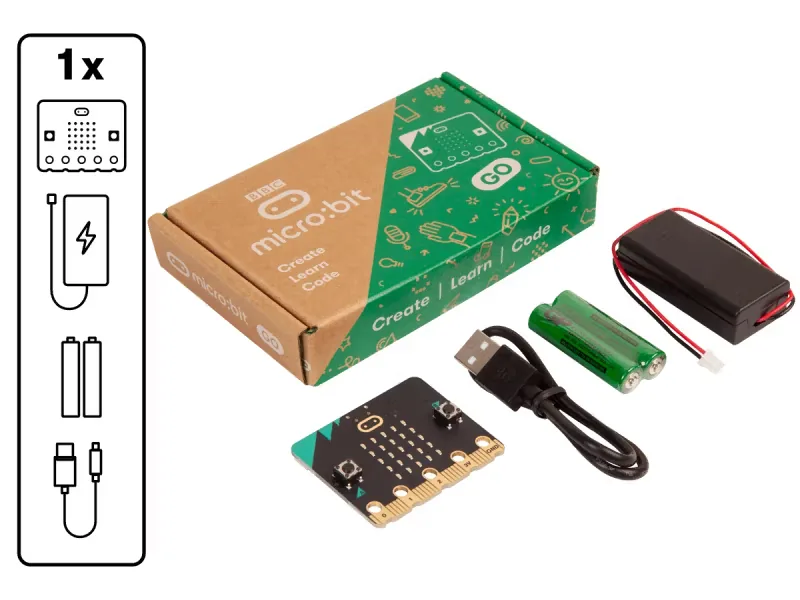
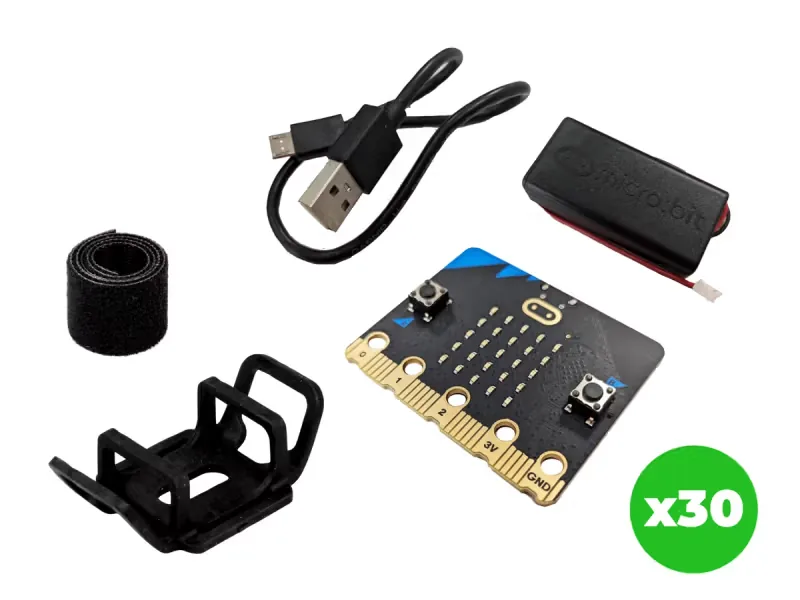
From our shop: BBC micro:bit V2 Go, BBC micro:bit V2.21 Next Gen Classroom Pack
Safety
- Clear a safe space first: no bags on the floor, and enough room for everyone to move without bumping into each other.
- Use the battery holder with two AAA batteries. Never mix old and new batteries, and take the batteries out before the kits are packed away.
- Unplug the battery holder by holding its plug, never by pulling the wires.
The lesson plan
One lesson of 45 to 60 minutes in three parts: introduction, lesson development and consolidation. The CAPS gives Coding and Robotics 2 hours a week, so it fits one of the week's lessons. Times are a guide.
Introduction
5 to 10 minutesRetrieval practiceWhat is an event in a program? (Something that happens, such as a button press, that starts part of the program.)
Problem statementSome learners find it hard to say out loud that they feel worried, tired or upset, so the teacher may not know until much later in the day. Program a badge that shows a feeling at the press of a button, so a learner can tell the teacher without saying a word.
- Show the feeling cards one at a time. Learners show each feeling with their face, and name a time at school when someone might feel it.
- Read the problem statement together. Ask: how could a badge tell people how you feel without you saying a word?
Lesson development
35 to 40 minutes- Unplugged first. On 5 by 5 grids on paper, learners colour in squares to draw a happy face and a sad face. Compare: which squares change between the two? That is exactly what the micro:bit's lights will do.
- Plan on paper first. Pairs fill in an IPO table with a row for each event: switching on, button A, button B and a shake. They choose which feeling goes in each row.
- Predict. Show the finished blocks and ask: when the badge is switched on, which face will show? What will it show after A, then a shake? Will the face change by itself if nobody touches it?
- Build in blocks. Pairs share one computer. The driver builds the program from the Blocks tab; the navigator holds the IPO table and checks that each event shows the face in its row. Swap roles halfway, after step 3, so each learner builds at least one event.
- Test and debug. Test each event on the on-screen micro:bit: the simulator has a SHAKE button for the shake. Did it match your prediction? If B shows the happy face too, check the letter on the second block. Then download the program and test it on a real board.
- Learners choose their own three feelings and match them to icons, or draw their own faces with show leds. Then they clip on the battery holder and walk around: partners guess each feeling from the face alone.
Plan on paper: a model answer
In pairs, fill in an IPO table with one row for each event the badge uses, then number the steps in order.
Algorithm
- When the badge is switched on, show the sleepy face.
- When button A is pressed, show the happy face.
- When button B is pressed, show the sad face.
- When the badge is shaken, show the surprised face.
- Keep showing the last face until the next event.
IPO table
Input Processing Output The micro:bit is switched on Run the blocks in on start, once The sleepy face Button A is pressed Run the blocks in on button A pressed The happy face Button B is pressed Run the blocks in on button B pressed The sad face The micro:bit is shaken Run the blocks in on shake The surprised face Consolidation
5 to 10 minutes- Ask: how does the micro:bit know which face to show?
- Learners share one thing they had to debug, and how they fixed it.
- Back to the problem: would the badge help a classmate tell the teacher how they feel without saying a word? What else would they need? Learners show, with the badge, how they feel at the end of the lesson, and check themselves against the success criteria.
Build it, step by step
Pairs build the program in blocks, following the numbered steps, with the same program as text beside them to check against or paste. Test in the simulator before sending it to a board.
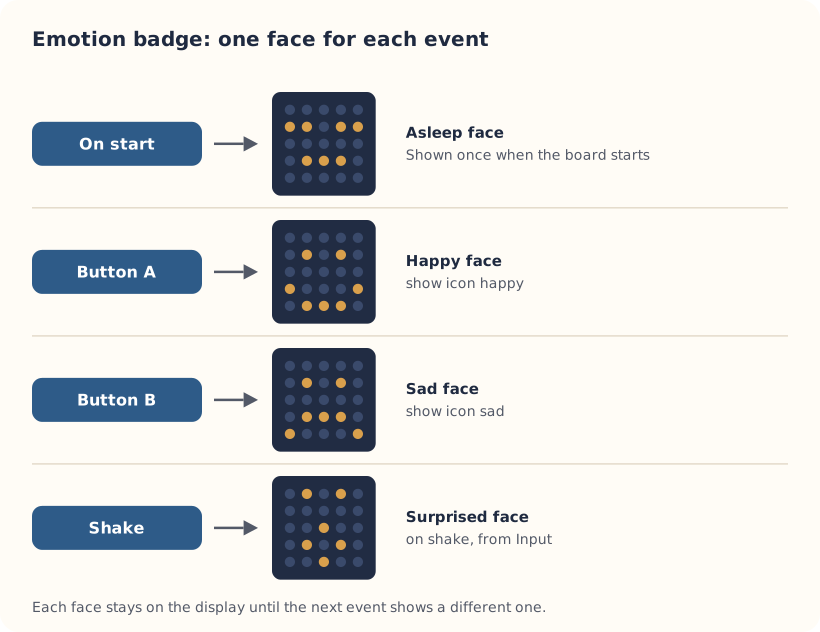
These are the MakeCode steps. The other routes are on the lesson's web page.
Build it in MakeCode blocks
- Start a New Project called Emotion badge.
- From Basic, drag show icon into on start and choose the sleepy face, so the badge starts asleep.
- From Input, drag in on button A pressed and put a show icon inside it with the happy face.
- Add a second button block, change it to B and choose the sad face.
- From Input, drag in on shake and choose the surprised face.
- Test all three in the simulator, then click Download.
input.onButtonPressed(Button.A, function () {
    basic.showIcon(IconNames.Happy)
})
input.onButtonPressed(Button.B, function () {
    basic.showIcon(IconNames.Sad)
})
input.onGesture(Gesture.Shake, function () {
    basic.showIcon(IconNames.Surprised)
})
basic.showIcon(IconNames.Asleep)
To use the text instead: open MakeCode, start a new project, click JavaScript at the top, replace what is there with this code, then click Blocks to see it as blocks.
To send it to the board, click Download. In Chrome or Edge, MakeCode can connect to the micro:bit by USB so the program goes straight onto it. Otherwise a .hex file downloads: drag it onto the MICROBIT drive.
Purple Mash follows the UK school years, which run about one grade ahead of ours: Year 3 is roughly Grade 2 here, Year 4 roughly Grade 3 and Year 5 roughly Grade 4. 2Simple says its micro:bit lessons can be adapted for other ages, so older learners who are new to the micro:bit can use them too.
These steps are our own. 2Simple's lesson has its own plan, slides and videos, which teachers with a Purple Mash login can use alongside this one.
Our steps in Free Code micro:bit
Block names in Free Code micro:bit are not the same as MakeCode's, so these steps say what each block does. Check the exact names in Purple Mash.
- Log in to Purple Mash and open the lesson from the Computing Scheme of Work, or the micro:bit projects in the Computing area. They use Free Code micro:bit, 2Simple's block coding tool for the micro:bit (2Simple's help pages also call it 2Code micro:bit).
- Open Free Code micro:bit from the Emotion Badge lesson or project.
- Add a block that shows a sleepy picture when the program starts.
- Add a button A block that shows a happy picture, and a button B block that shows a sad one.
- If your version has a shake event, use it for a third feeling. If not, check in Purple Mash which other events it offers.
- Test the program on the on-screen micro:bit (2Simple calls it the micro:bit emulator) before you send it to a board.
- Save your work, open the purple menu at the top and choose Download.Hex. Plug in the micro:bit with a USB cable that carries data and drag the .hex file onto the MICROBIT drive. On an iPad, open the file in the micro:bit app and tap Send to micro:bit.
2Simple says the micro:bit projects can also be coded in Python in Pieces, if your school has it.
Extension: text-based coding, beyond the CAPS
The same program in MicroPython, for the micro:bit Python Editor. It suits Grade 7 to 9 learners who are ready for text-based code. The CAPS itself follows a block-based approach (Coding and Robotics CAPS, Grades 7 to 9, page 24).
# Emotion badge: A for happy, B for sad, shake for surprised.
from microbit import *

display.show(Image.ASLEEP)
while True:
    if button_a.was_pressed():
        display.show(Image.HAPPY)
    if button_b.was_pressed():
        display.show(Image.SAD)
    if accelerometer.was_gesture("shake"):
        display.show(Image.SURPRISED)
    sleep(100)
Open the Python editor, replace the code that is there with this program (or open the downloaded file), then click Send to micro:bit. MakeCode also has a Python view, which is written a little differently.
Extension or homework
Challenges for learners who finish early, or to take further in a club or as homework.
- Challenge 1
Make a check-in board for the class: one learner a day sets the badge to show how the class feels, and talks about why.
- Challenge 2
Make each face blink: show the face, a short pause, then the same face with its eyes closed, drawn with show leds.
- Challenge 3
Try the Look after a micro:bit pet next: a pet whose face changes with how well it is looked after.
Support and extension
Support
For learners who need more help
- Start with button A only. Add button B once the first one works.
- Give learners the IPO table with the events already written in, so they only choose the feelings.
Extension
For learners who are ready for more
- Draw your own feeling faces with show leds instead of icons.
- On a micro:bit V2, add on logo pressed from Input for a fourth feeling.
Informal assessment
Ask these as learners work. Informal assessment happens every day and is not recorded.
- What are the three events in your program?
- Why does the badge show the sleepy face first?
- Name one input and one output in your badge.
If you wanted button A to show a different face, which block would you change?
Observation checklist
Watch pairs as they plan, build and test. Write each pair's initials under the level you see.
| Watch for | Beginning | Developing | Accomplished | Exemplary |
|---|---|---|---|---|
| Matches each event in the program to a row of the IPO table. | ||||
| Takes a turn as driver and as navigator. | ||||
| Tests every event, the shake too, before downloading. | ||||
| Names feelings with precise words, such as worried, proud or tired. |
- Beginning:
- not yet, even with help
- Developing:
- with help
- Accomplished:
- on their own
- Exemplary:
- on their own, and explains it or takes it further
The four levels are the CAPS rubric levels (Coding and Robotics CAPS, Grades R to 3, page 127; Grades 4 to 6, page 176). The short descriptions are ours.
In Grade 3, all assessment is school-based, through observation, oral, practical and written tasks (Coding and Robotics CAPS, Grades R to 3, page 121). This lesson is not a formal task, but it is good practice for the term's practical task in Grades 4 to 6 (Coding and Robotics CAPS, Grades 4 to 6, page 170).
Common mistakes and fixes
- Button B shows the happy face too.Both blocks still say A. Click the letter on the second block and change it to B.
- Shaking does nothing.Shake a little harder, and check the block says shake rather than another gesture such as logo up.
- The sleepy face never shows.It only shows at the start. Press the reset button on the back to see it again.
Where it sits in CAPS
- Coding and RoboticsAlignedGrade 5, Term 4: buttons A and B make the micro:bit show different pictures.Source: Coding and Robotics CAPS, Grades 4 to 6, Grade 5, Term 4, Robotics, R.7 Create, test and execute a set of robotic instructions, page 123:
When you press button A the image must scroll from left to the right, until the image is not visible anymore.
- Coding and RoboticsAlignedGrade 5, Term 4: code smiley faces on the micro:bit.Source: Coding and Robotics CAPS, Grades 4 to 6, Grade 5, Term 4, Robotics, R.5 Design a simple artefact based on a set of design instructions, page 122:
Learner code smiley faces using the microcontroller
- Coding and RoboticsAlignedGrade 5, Term 4: use pictures on LEDs to communicate a message.Source: Coding and Robotics CAPS, Grades 4 to 6, Grade 5, Term 4, Digital Concepts, D.9 Create a pattern to represent or communicate a message or image, page 125:
Learners use block-based coding applications to interpret and communicate messages using text/images/LEDs/interactive stories, etc.
- Coding and RoboticsFitsGrade 4, Term 1: input, processing and output, with buttons and a shake as the inputs.Source: Coding and Robotics CAPS, Grades 4 to 6, Grade 4, Term 1, Digital Concepts, D.7 Present a basic understanding of the concept of input processing and output, page 64:
the three main steps that occur in a computer or any other device
- Coding and RoboticsFitsGrade 4, Term 2: a picture on the LEDs that communicates a message, here a feeling.Source: Coding and Robotics CAPS, Grades 4 to 6, Grade 4, Term 2, Digital Concepts, D.8 Interpret a pattern to represent or communicate a message or image, page 77:
Interpret a pattern to represent or communicate a message or image
- Life SkillsGrade 4 Life Skills: understanding emotions and appropriate ways to express them.Source: CAPS Life Skills, Grades 4 to 6, Grade 4, Term 2, Personal and Social Well-being: Development of the self:
Understanding own emotions: appropriate ways to express own emotions
- Coding and RoboticsSupportsGrade 3, Term 3: reading a picture as a message, done on paper in the CAPS, as in the unplugged introduction.Source: Coding and Robotics CAPS, Grades R to 3, Grade 3, Term 3, Digital Concepts, D.8 Interpret a pattern to represent or communicate a message or image, page 113:
Interpret a pattern to represent or communicate a message or image.
Coding and Robotics quotes come from the Department of Basic Education's final CAPS, with the page number of the 2024 printed edition (the Department's October 2025 library copies number their pages differently). Schools may teach a topic in another term: the CAPS leaves the order to each school's annual teaching plan.
micro:bit is a trade mark of the Micro:bit Educational Foundation, and BBC is a trade mark of the British Broadcasting Corporation. Maze Education is an independent reseller of genuine BBC micro:bit products. Our teacher training and our other products and services are our own, and are not endorsed by the Foundation or the BBC.