
Lesson at a glance
maze.education/microbit/lessons/traffic-lights
- Grades
- Grades 6 to 9
- Time
- 45 to 60 minutesThe CAPS gives Coding and Robotics 2 hours a week (Coding and Robotics CAPS, Grades 4 to 6, page 22; Grades 7 to 9, page 22).
- Level
- Confident codersFor confident classes: more steps to build, with variables, radio or data.
- Board
- Any micro:bit
- Code with
- MakeCode blocks, with Python as an extension
- CAPS
- Natural Sciences and Technology, Technology, Coding and RoboticsFits: Grade 6, Term 1 · Where it fits
Learning intentions
Learners will learn to:
- Plan a control system as a flowchart with a sequence, a decision and timings.
- Use a function with an input (a parameter) to avoid repeating code.
- Explain how an input (the button) changes what a system does.
Success criteria
Each learner can say:
- I can draw a flowchart with a sequence, a decision and the time for each light.
- I can use a function with a parameter, so the same blocks light any row.
- I can explain how pressing the button changes what the robot does next.
- Grades 7 to 9: I can trace the value of waiting through one cycle of the lights.
Competencies
From the Coding and Robotics CAPS places this lesson cites.
- C.2Present a simple coding solution
- R.6Mimic the operations of a robot
- R.7Create, test and execute a set of robotic instructions
Key words
- sequence
- Steps that happen in a set order.
- system
- Parts that work together: input, process and output.
- flowchart
- A diagram of the steps and decisions in a process.
- function
- A named set of instructions you can run whenever you need it.
- parameter
- A value you give a function, such as which row to light.
- trace table
- A table that follows the value of each variable, step by step, as a program runs.
What you need
- One micro:bit per pair, with a USB cable and a battery holder
- A computer with Chrome or Edge for each pair
- Paper for the flowcharts
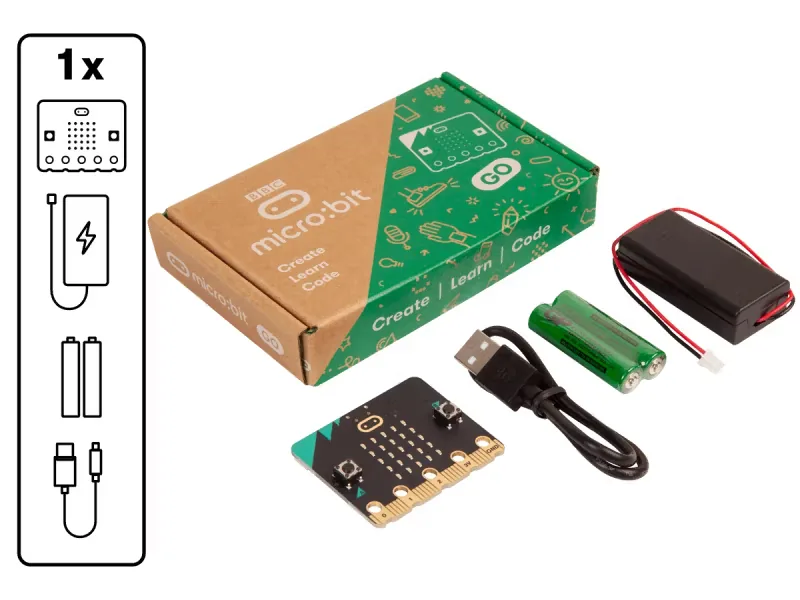
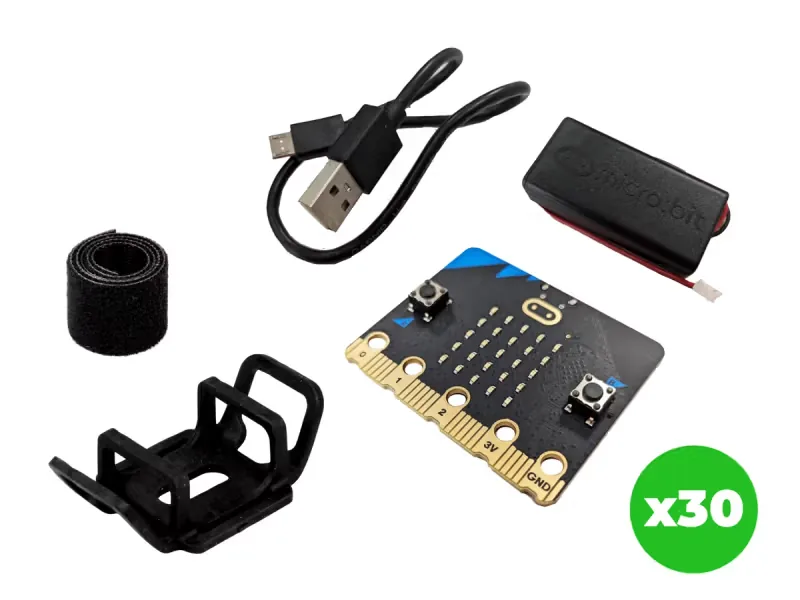
From our shop: BBC micro:bit V2 Go, BBC micro:bit V2.21 Next Gen Classroom Pack
Safety
- Keep USB cables tidy on the desk so nobody trips over them or pulls a laptop off the table.
- Use the battery holder with two AAA batteries. Never mix old and new batteries, and take the batteries out before the kits are packed away.
- Unplug the battery holder by holding its plug, never by pulling the wires.
The lesson plan
One lesson of 45 to 60 minutes in three parts: introduction, lesson development and consolidation. The CAPS gives Coding and Robotics 2 hours a week, so it fits one of the week's lessons. Times are a guide.
Introduction
5 to 10 minutesRetrieval practiceWhat is the difference between an input and an output, and what is one of each at a pedestrian crossing? (An input goes in, such as the button; an output comes out, such as the lights or the beeping.)
Problem statementMany learners cross a busy road to get to school, and some robots give people on foot very little time. Design and program a robot with a pedestrian button, so that someone waiting gets a walk signal while the light is red.
- Ask: what do we call traffic lights in South Africa? (Robots.) What order do the lights come in? Green, amber, red, then green again.
- Read the problem statement. Ask: how does a pedestrian crossing know someone is waiting?
Lesson development
35 to 40 minutes- Plan on paper first. Pairs draw the robot as a flowchart: start, green and wait, amber and wait, red, then a decision: is someone waiting? Yes leads to the walk signal; no leads back to green. Write the time beside each light.
- Predict. Ask: if A is pressed during amber, when will the walking figure appear? Grades 7 to 9: pairs fill in the trace table for waiting through two cycles, the first with a press during green.
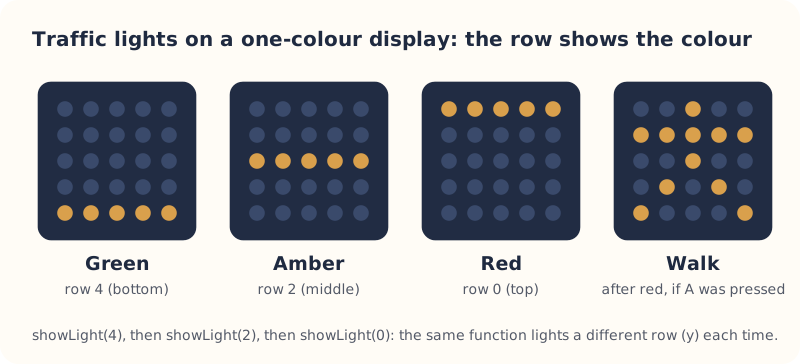
- Build in blocks. Our display has only one colour, so position shows the colour, as on a real robot: red at the top, amber in the middle, green at the bottom. Pairs share one computer. The driver builds the function showLight first, from the Blocks tab, and the navigator checks it against the flowchart. Swap roles halfway: the new driver adds the sequence in forever and the pedestrian button.
- Test and debug. Test showLight with different rows first, then the whole robot: press A during green and watch for the walking figure when the light turns red. Compare what happens with the flowchart and the trace table, and fix the first place they differ.
- Change the timings to suit a busy road and a quiet road. Which would you choose outside the school gate?
Plan on paper: a model answer
In pairs, draw the robot as a flowchart, with the time beside each light. Grades 7 to 9 also trace the variable waiting through two cycles.
Flowchart
- Start
- Green (bottom row) for 3 seconds
- Amber (middle row) for 1 second
- Red (top row)
- Is someone waiting?Yes: wait 1 second, show the walking figure for 3 seconds, set waiting to false, then back to greenNo: stay red for 3 seconds, then back to green
Trace table
Grades 7 to 9: the value of waiting as the program runs. Button A is pressed during the first green. Step What shows A pressed? waiting Start Nothing yet No false 1 Green Yes true 2 Amber No true 3 Red No true 4 Walking figure for 3 seconds No true, then false 5 Green No false 6 Amber No false 7 Red for 3 seconds No false Consolidation
5 to 10 minutes- Ask: what is the input, the process and the output in this system?
- Ask: why did a function make the program shorter? Grades 7 to 9: which row of the trace table shows waiting going back to false, and why must it?
- Back to the problem: why do real robots put red at the top? Position helps drivers who find colours hard to tell apart. Learners check themselves against the success criteria.
Build it, step by step
Pairs build the program in blocks, following the numbered steps, with the same program as text beside them to check against or paste. Test in the simulator before sending it to a board.
These are the MakeCode steps. The other routes are on the lesson's web page.
Build it in MakeCode blocks
- Start a New Project. Open Advanced, then Functions, and make a function called showLight with a number input called row.
- In the function, put clear screen from Basic, then a for index from 0 to 4 loop from Loops, renamed x, with plot x y from Led: x and row.
- In forever, call showLight with 4 (green), pause (ms) 3000, showLight 2 (amber), pause 1000, then showLight 0 (red).
- Make a variable called waiting. Add on button A pressed with set waiting to true (from Logic).
- After red, add if then else: if waiting, pause 1000, show icon stick figure, pause 3000 and set waiting to false. Else pause 3000.
- Test in the simulator, then Download.
function showLight (row: number) {
    basic.clearScreen()
    for (let x = 0; x <= 4; x++) {
        led.plot(x, row)
    }
}
input.onButtonPressed(Button.A, function () {
    waiting = true
})
let waiting = false
basic.forever(function () {
    showLight(4)
    basic.pause(3000)
    showLight(2)
    basic.pause(1000)
    showLight(0)
    if (waiting) {
        basic.pause(1000)
        basic.showIcon(IconNames.StickFigure)
        basic.pause(3000)
        waiting = false
    } else {
        basic.pause(3000)
    }
})
To use the text instead: open MakeCode, start a new project, click JavaScript at the top, replace what is there with this code, then click Blocks to see it as blocks.
To send it to the board, click Download. In Chrome or Edge, MakeCode can connect to the micro:bit by USB so the program goes straight onto it. Otherwise a .hex file downloads: drag it onto the MICROBIT drive.
No Purple Mash route for this lesson
We could not find a Purple Mash unit or project that matches this lesson, so it is MakeCode blocks, with Python as an extension. These lessons have a Purple Mash route:
Extension: text-based coding, beyond the CAPS
The same program in MicroPython, for the micro:bit Python Editor. It suits Grade 7 to 9 learners who are ready for text-based code. The CAPS itself follows a block-based approach (Coding and Robotics CAPS, Grades 7 to 9, page 24).
# Traffic lights: red at the top, amber in the middle, green at the bottom. A asks to cross.
from microbit import *


def show_light(row):
    display.clear()
    for x in range(5):
        display.set_pixel(x, row, 9)


while True:
    show_light(4)
    sleep(3000)
    show_light(2)
    sleep(1000)
    show_light(0)
    if button_a.was_pressed():
        sleep(1000)
        display.show(Image.STICKFIGURE)
        sleep(3000)
    else:
        sleep(3000)
In Python, button_a.was_pressed() remembers a press from any time during the cycle, so it does the job of the waiting variable.
Open the Python editor, replace the code that is there with this program (or open the downloaded file), then click Send to micro:bit. MakeCode also has a Python view, which is written a little differently.
Extension or homework
Challenges for learners who finish early, or to take further in a club or as homework.
- Challenge 1
Add a countdown for pedestrians: show 5, 4, 3, 2, 1 before the light turns back to red for them.
- Challenge 2
Add a night mode: when the light level is low, the robot flashes amber.
- Challenge 3
Find out how long the robots near your school stay green, and use those times in your program.
Support and extension
Support
For learners who need more help
- Give learners the flowchart and the function already built, so they write the sequence in forever.
- Leave out the pedestrian button until the lights work.
Extension
For learners who are ready for more
- Help someone who cannot see the lights: on a micro:bit V2, beep once a second while the walking figure shows.
- Use radio to keep two robots at a crossroads in step: when one turns red, it tells the other to turn green.
Informal assessment
Ask these as learners work. Informal assessment happens every day and is not recorded.
- What order do the lights come in on a South African robot?
- What does the parameter row do in showLight?
- Draw the decision in your flowchart and label both answers.
How would you make the green light last twice as long?
Observation checklist
Watch pairs as they plan, build and test. Write each pair's initials under the level you see.
| Watch for | Beginning | Developing | Accomplished | Exemplary |
|---|---|---|---|---|
| Draws a flowchart with a sequence, a decision and timings before building. | ||||
| Builds and tests the function with a parameter before the rest of the program. | ||||
| Uses the flowchart or the trace table to find a fault. | ||||
| Explains how the button press changes what the robot does next. |
- Beginning:
- not yet, even with help
- Developing:
- with help
- Accomplished:
- on their own
- Exemplary:
- on their own, and explains it or takes it further
The four levels are the CAPS rubric levels (Coding and Robotics CAPS, Grades 4 to 6, page 176; Grades 7 to 9, page 163). The short descriptions are ours.
This lesson is not a formal task, but it is good practice for the term's practical task in Grades 4 to 6 (Coding and Robotics CAPS, Grades 4 to 6, page 170), and for the mini-PATs in Grades 7 to 9 (Coding and Robotics CAPS, Grades 7 to 9, page 157).
Common mistakes and fixes
- All the rows stay lit.Check clear screen is the first block inside showLight.
- The walking figure never appears.Check button A sets waiting to true, and that the if checks waiting rather than false.
- The lights light up as a column, not a row.In plot, x must be the loop variable and y must be row.
Where it sits in CAPS
- Coding and RoboticsFitsGrade 6, Term 1: program a pedestrian crossing's stop and go lights on a micro:bit.Source: Coding and Robotics CAPS, Grades 4 to 6, Grade 6, Term 1, Robotics, R.6 and R.7 (project), page 133:
Design and Create a Pedestrian Crossing using Microcontrollers and LEDs
- Coding and RoboticsFitsGrade 8, Term 2: show an algorithm as a flowchart, then turn it into block code. Functions with a parameter go beyond the CAPS.Source: Coding and Robotics CAPS, Grades 7 to 9, Grade 8, Term 2, Coding, C.2 Present a simple coding solution, page 103:
You can represent the above instructions/algorithm using a flowchart:
- TechnologyGrade 8 Technology: input, output and control devices in an electrical system.Source: CAPS Technology, Grades 7 to 9, Grade 8, Term 4: Electrical systems and control:
output devices (resistor; lamp; heater; buzzer; motor); control device (switches)
Coding and Robotics quotes come from the Department of Basic Education's final CAPS, with the page number of the 2024 printed edition (the Department's October 2025 library copies number their pages differently). Schools may teach a topic in another term: the CAPS leaves the order to each school's annual teaching plan.
micro:bit is a trade mark of the Micro:bit Educational Foundation, and BBC is a trade mark of the British Broadcasting Corporation. Maze Education is an independent reseller of genuine BBC micro:bit products. Our teacher training and our other products and services are our own, and are not endorsed by the Foundation or the BBC.