
Lesson at a glance
maze.education/microbit/lessons/radio-messages
- Grades
- Grades 7 to 9
- Time
- 45 to 60 minutesThe CAPS gives Coding and Robotics 2 hours a week (Coding and Robotics CAPS, Grades 7 to 9, page 22).
- Level
- Some experienceFor classes that have used the micro:bit and MakeCode once or twice.
- Board
- Any micro:bit
- Code with
- MakeCode blocks, with Python as an extension
- CAPS
- Technology, Coding and RoboticsAligned: Grade 7, Term 3 · Where it fits
Learning intentions
Learners will learn to:
- Send and receive messages between micro:bits by radio.
- Explain why boards must share a group number to talk to each other.
- Describe a wireless system in terms of input, process and output.
Success criteria
Each learner can say:
- I can send a message from one micro:bit and show it on another.
- I can explain why both boards need the same group number.
- I can describe the system's input, processing and output.
Competencies
From the Coding and Robotics CAPS places this lesson cites.
- R.3Outline the different components of a robot
- D.7Present a basic understanding of the concept of input processing and output
Key words
- radio
- Sending information through the air with radio waves, without wires.
- group
- A number from 0 to 255. Boards only hear messages from boards in the same group.
- transmit
- To send a message.
- receive
- To get a message.
- protocol
- The agreed rules two devices use to understand each other.
- trace table
- A table that follows the value of each variable, step by step, as a program runs.
What you need
- At least two micro:bits per pair, with USB cables and battery holders
- A computer with Chrome or Edge for each pair
- Sticky notes to label each pair's group number
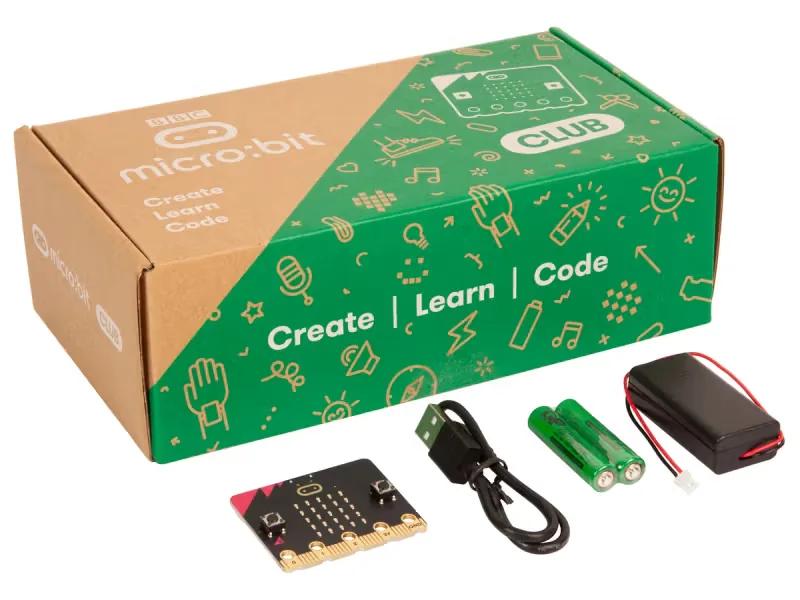
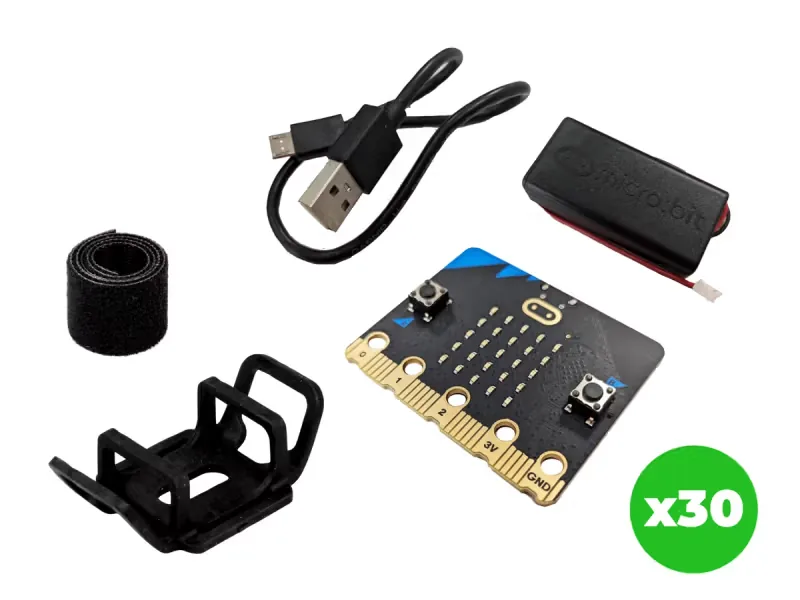
From our shop: BBC micro:bit V2 Club Pack, BBC micro:bit V2.21 Next Gen Classroom Pack
Safety
- Keep USB cables tidy on the desk so nobody trips over them or pulls a laptop off the table.
- Use the battery holder with two AAA batteries. Never mix old and new batteries, and take the batteries out before the kits are packed away.
- Unplug the battery holder by holding its plug, never by pulling the wires.
The lesson plan
One lesson of 45 to 60 minutes in three parts: introduction, lesson development and consolidation. The CAPS gives Coding and Robotics 2 hours a week, so it fits one of the week's lessons. Times are a guide.
Introduction
5 to 10 minutesRetrieval practiceWhat do the letters IPO stand for? (Input, processing and output: what goes in, what the computer does with it and what comes out.)
Problem statementOn sports day, the teacher at the finish line needs to tell the teacher at the start that the lanes are clear, across a noisy field. Build a two-board radio system that sends YES and NO, and work out how to keep other pairs' messages out.
- Ask: how does a message get from your phone to a friend's? List the wireless things in the room: phones, Wi-Fi, Bluetooth speakers, remote controls.
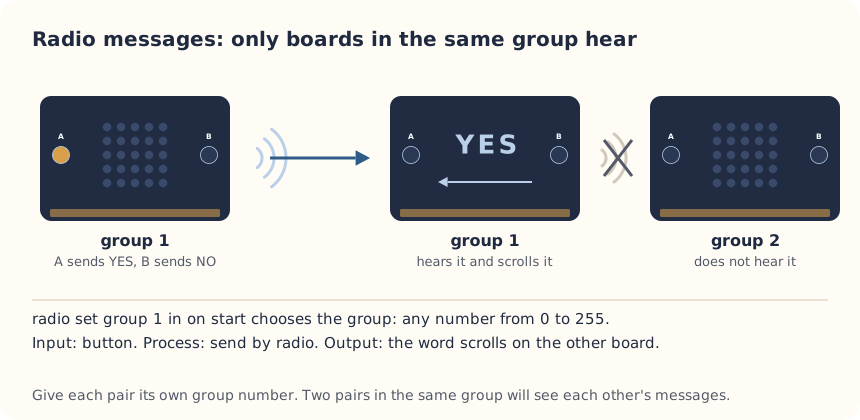
- Read the problem statement. Explain that the micro:bit has its own simple radio, and boards in the same group number can hear each other.
Lesson development
35 to 40 minutes- Unplugged first. Play radio groups: give each pair a secret group number on a card. The teacher calls out a group number and a message, and only that pair may act on it. Everyone else must ignore it.
- Plan on paper first. Give each pair a group number from 0 to 255 and write it on a sticky note on their desk. Pairs fill in an IPO table with a row for each input: button A, button B and a message arriving. Then they complete the trace table.
- Predict. Ask: if your board is in group 4 and another pair's board is in group 5, what will happen when they press A? And if two pairs both choose group 4?
- Build in blocks. Pairs share one computer. The driver builds the program from the Blocks tab, with the pair's own group number instead of 1; the navigator checks each block against the IPO table. Swap roles halfway, before the on radio received block. Download it to both boards.
- Test and debug. Press A on one board, and YES should appear on the other. Then change one board to a different group, and put two pairs in the same group. Did it match your predictions? If nothing arrives, check the group numbers first.
- Design a protocol: agree what three messages your pair needs (for example HELP, DONE, WAIT) and add on shake for the third.
Plan on paper: a model answer
In pairs, fill in an IPO table for the system, with a row for each input on either board, then complete the trace table.
IPO table
Input Processing Output Button A is pressed Send the string YES by radio to the pair's group YES scrolls on the other board in the group Button B is pressed Send the string NO by radio to the pair's group NO scrolls on the other board in the group A message arrives by radio Keep it in receivedString receivedString scrolls across the display Trace table
What board 2 of pair 1 holds and shows. Pair 1's boards are in group 4, and pair 2's in group 5. Event Message sent receivedString on board 2 Board 2 shows Pair 1, board 1: A pressed YES YES YES Pair 1, board 1: B pressed NO NO NO Pair 2: A pressed YES, to group 5 NO (unchanged) Nothing new Consolidation
5 to 10 minutes- Ask: what is the input, process and output when a message is sent?
- Ask: why did messages get mixed up when two pairs shared a group?
- Back to the problem: would this system work across the sports field? The micro:bit's radio is not secret, so what should never be sent this way?
Build it, step by step
Pairs build the program in blocks, following the numbered steps, with the same program as text beside them to check against or paste. Test in the simulator before sending it to a board.
These are the MakeCode steps. The other routes are on the lesson's web page.
Build it in MakeCode blocks
- Start a New Project called Radio messages.
- From Radio, drag radio set group 1 into on start and change 1 to your pair's group.
- From Input, add on button A pressed with radio send string from Radio, and type YES.
- Add on button B pressed with radio send string NO.
- From Radio, drag in on radio received receivedString, and put show string from Basic inside it. Drag the round receivedString from the block's top into show string.
- The simulator shows two boards when you use radio. Test it there, then Download to both micro:bits.
radio.onReceivedString(function (receivedString) {
    basic.showString(receivedString)
})
input.onButtonPressed(Button.A, function () {
    radio.sendString("YES")
})
input.onButtonPressed(Button.B, function () {
    radio.sendString("NO")
})
radio.setGroup(1)
To use the text instead: open MakeCode, start a new project, click JavaScript at the top, replace what is there with this code, then click Blocks to see it as blocks.
To send it to the board, click Download. In Chrome or Edge, MakeCode can connect to the micro:bit by USB so the program goes straight onto it. Otherwise a .hex file downloads: drag it onto the MICROBIT drive.
No Purple Mash route for this lesson
We could not find a Purple Mash unit or project that matches this lesson, so it is MakeCode blocks, with Python as an extension. These lessons have a Purple Mash route:
Extension: text-based coding, beyond the CAPS
The same program in MicroPython, for the micro:bit Python Editor. It suits Grade 7 to 9 learners who are ready for text-based code. The CAPS itself follows a block-based approach (Coding and Robotics CAPS, Grades 7 to 9, page 24).
# Radio messages: A sends YES, B sends NO, and messages from the same group scroll past.
from microbit import *
import radio

radio.on()
radio.config(group=1)
while True:
    if button_a.was_pressed():
        radio.send("YES")
    if button_b.was_pressed():
        radio.send("NO")
    message = radio.receive()
    if message:
        display.scroll(message)
    sleep(20)
Boards running the MakeCode version and boards running the Python version do not understand each other's radio messages, so every board in a group needs the same version.
Open the Python editor, replace the code that is there with this program (or open the downloaded file), then click Send to micro:bit. MakeCode also has a Python view, which is written a little differently.
Extension or homework
Challenges for learners who finish early, or to take further in a club or as homework.
- Challenge 1
Send secret messages in the Morse code messenger lesson.
- Challenge 2
Build a class vote in the Classroom voting system lesson.
- Challenge 3
Play a game over radio in the Radio hot potato lesson.
Support and extension
Support
For learners who need more help
- Give each pair a printed group number and the program with only the group to change.
- Start with one message (button A) and add button B once it works.
Extension
For learners who are ready for more
- Make a class vote: every board sends YES or NO, and the teacher's board counts each with two variables and shows the totals on A and B.
- Use radio send number and on radio received receivedNumber to send a reading, such as the temperature, from one board to another.
Informal assessment
Ask these as learners work. Informal assessment happens every day and is not recorded.
- What does the group number do?
- Which block runs when a message arrives?
- Two boards are in groups 4 and 5. Can they talk? Why?
Give one way a radio message system could be used at school.
Observation checklist
Watch pairs as they plan, build and test. Write each pair's initials under the level you see.
| Watch for | Beginning | Developing | Accomplished | Exemplary |
|---|---|---|---|---|
| Fills in the IPO table for both boards before building. | ||||
| Sets the pair's own group number and explains why it matters. | ||||
| Predicts what happens with different and shared groups, then tests it. | ||||
| Designs a third message and agrees what it means with a partner. |
- Beginning:
- not yet, even with help
- Developing:
- with help
- Accomplished:
- on their own
- Exemplary:
- on their own, and explains it or takes it further
The four levels are the CAPS rubric levels (Coding and Robotics CAPS, Grades 7 to 9, page 163). The short descriptions are ours.
This lesson is not a formal task, but it is good practice for the mini-PATs in Grades 7 to 9 (Coding and Robotics CAPS, Grades 7 to 9, page 157).
Common mistakes and fixes
- Nothing arrives on the other board.Check both boards have the same group number and were both given the new program.
- Messages from other pairs appear.Another pair is using your group number. Choose a different one from 0 to 255.
- A Python board and a MakeCode board cannot talk.Their radio messages are made differently. Put the same version on both boards.
Where it sits in CAPS
- Coding and RoboticsAlignedGrade 7, Term 3: sending messages between two micro:bits by radio.Source: Coding and Robotics CAPS, Grades 7 to 9, Grade 7, Term 3, Robotics, R.3 Outline the different components of a robot, page 79:
The learners are introduced to the concept of message passing between two devices.
- Coding and RoboticsAlignedGrade 7, Term 3: boards on the same channel (radio group) can talk to each other. The words are in the picture on that page.Source: Coding and Robotics CAPS, Grades 7 to 9, Grade 7, Term 3, Robotics, R.3 Outline the different components of a robot, page 79:
So, it means they communicate with each other on the same channel.
- Coding and RoboticsAlignedGrade 7, Term 3: input, processing and output in a network.Source: Coding and Robotics CAPS, Grades 7 to 9, Grade 7, Term 3, Digital Concepts, D.7 Present a basic understanding of the concept of input processing and output, page 83:
Input, processing, output, communication (networks)
- TechnologyFits Technology: a system with an input, a process and an output, spread across two devices.
Coding and Robotics quotes come from the Department of Basic Education's final CAPS, with the page number of the 2024 printed edition (the Department's October 2025 library copies number their pages differently). Schools may teach a topic in another term: the CAPS leaves the order to each school's annual teaching plan.
micro:bit is a trade mark of the Micro:bit Educational Foundation, and BBC is a trade mark of the British Broadcasting Corporation. Maze Education is an independent reseller of genuine BBC micro:bit products. Our teacher training and our other products and services are our own, and are not endorsed by the Foundation or the BBC.